
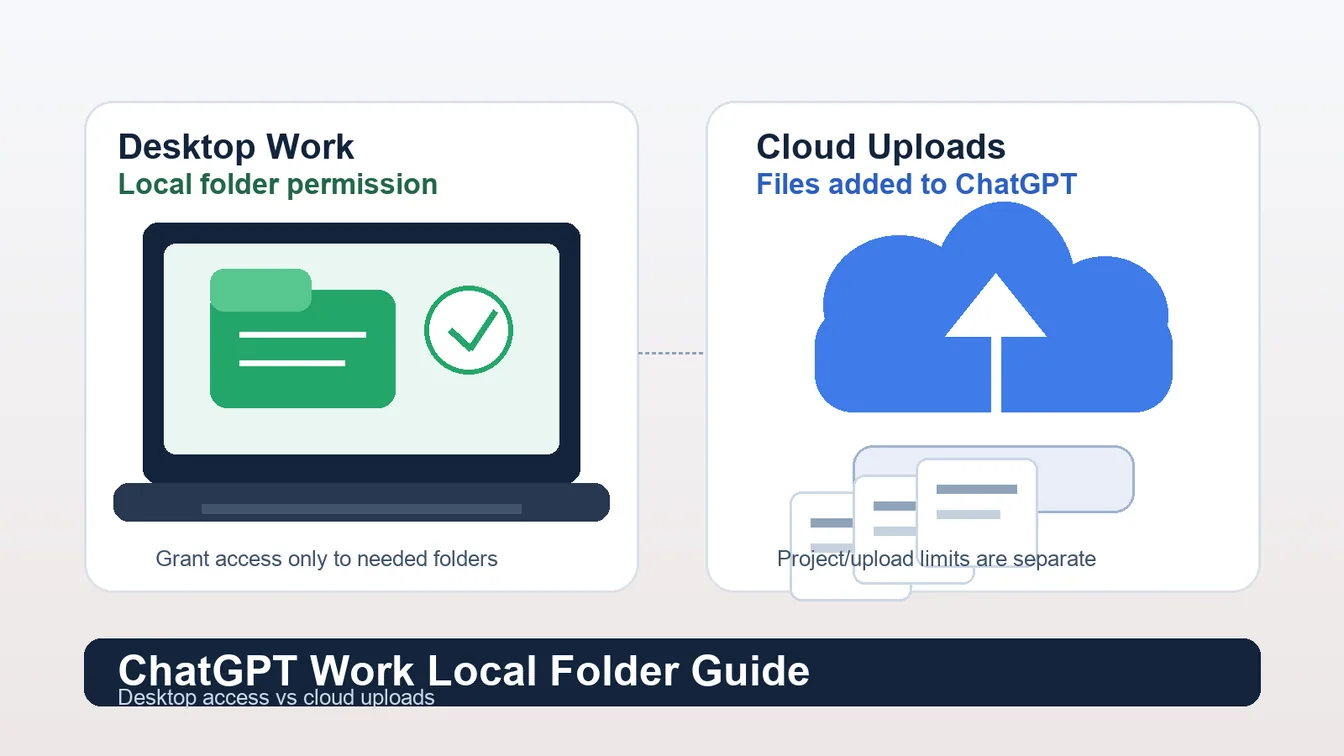
Need to decide where files should live before starting a Work task? In the desktop app, Work can use a local folder or project after you grant access. Work on web and mobile runs in the cloud and cannot directly read files on your computer, so add the files or project context it needs. Choose the narrowest access scope, then check that your plan and workspace allow the Work mode you need.
Tool Summary
ChatGPT Work is OpenAI’s longer-form workspace for research, analysis, and finished materials such as documents, spreadsheets, presentations, reports, and Sites. It sits beside regular Chat and Codex: Chat is for fast conversation, Work is for deliverables and research, and Codex is for software development and repository work.
The important file distinction is surface-specific. In the desktop app, Work can use local files and desktop apps with your permission. On web and mobile, Work runs in the cloud, so you add files to the conversation or project instead of giving it direct access to a folder on your computer.
Availability also needs a caveat. OpenAI says ChatGPT Work is rolling out gradually to eligible accounts, and desktop access depends on your plan and workspace. If you do not see Work, a Work/Codex mode switcher, or the expected folder option yet, that can simply mean the rollout has not reached your account.
Best Fit Users
- Knowledge workers with large local folders: Use desktop Work when the source material already lives in a folder on your computer and should stay organized there.
- Teams building cloud projects: Use web or mobile Work when the files are already part of a shared ChatGPT project, cloud workflow, or cross-device handoff.
- Analysts comparing documents: Use uploads when the task only needs a bounded set of PDFs, spreadsheets, presentations, or text files.
- Privacy-sensitive operators: Prefer desktop local-folder permission when you want to grant only the folder needed for the task and avoid turning a local file tree into a cloud upload set.
- Developers and technical teams: Use Codex, not Work, when the real job is code, repositories, terminals, tests, or developer tooling.
Setup / Working Method
Use this decision order before you add files. First decide whether the task needs direct local-folder context or a cloud upload set. Then choose the surface. Then give ChatGPT only the files or folder scope required for the deliverable.
| Need | Start here | Why |
|---|---|---|
| A folder already exists on your computer | ChatGPT desktop app, then Work, then open the local folder or project | Desktop Work can use local files with your permission. Local tasks run on that computer, while messages and task context may still be stored in the cloud. |
| A small set of documents needs analysis | Web, mobile, or desktop chat/project file upload | Uploads are designed for synthesis, transformation, and extraction tasks across documents, spreadsheets, presentations, and PDFs. |
| A cloud project needs shared context | Work on web or mobile, inside the relevant project | Cloud Work conversations can continue on supported cloud surfaces. Local desktop outputs may remain in local projects or folders and do not automatically appear on web or mobile. |
| Code needs repository access | Codex in the desktop app or the supported Codex surface | Codex is the dedicated mode for code, tests, repositories, terminals, and developer tools. |
For desktop local-folder work, open the ChatGPT desktop app, sign in, start a standalone chat or open a project/local folder for ongoing work, choose Work from the mode switcher, and describe the outcome you want. Add constraints, review criteria, and any files that should be considered. Grant access only to the folder or files the task actually needs.
For cloud uploads, open ChatGPT on web or mobile, select Work when it is available, open a conversation or project, upload the relevant files, and state the task. This path is better when the deliverable should travel with a cloud project, but it is still subject to upload, storage, and project-file limits.
Comparison / Limits
The most common mistake is treating project upload limits as desktop local-folder limits. They are not the same thing. A project file cap describes how many files you can upload into a ChatGPT project on the cloud side. It does not mean desktop Work can only see that many files inside a local folder after you grant folder access.
| Area | Desktop Work local folder | Cloud uploads / projects |
|---|---|---|
| Where files live | The source files stay in the local folder you authorize; messages and task context may still be stored in the cloud. | Uploaded into ChatGPT and saved with the corresponding chat, project, or GPT context. |
| How access starts | You open a local folder or project in the desktop app and grant permission. | You upload files into a chat, project, or GPT knowledge context. |
| Direct computer access from web/mobile | No. Web and mobile Work cannot directly access files on your computer. | Yes for uploaded files, within the upload system and plan limits. |
| Project file count limit | Do not apply this as the local-folder rule. | OpenAI lists project upload limits by plan, including 20 files per project for Plus and 40 for Pro, Team, Education, and Business. |
| Other upload limits | Not the main local-folder model. | OpenAI lists upload caps such as per-file size limits, rolling upload limits, and shared storage caps. |
For uploaded files, OpenAI’s File Uploads FAQ lists a hard 512 MB limit per file for GPT or ChatGPT conversation uploads, a 2M-token cap for text and document files, an approximate 50 MB limit for CSV/spreadsheet files depending on rows, and a 20 MB limit for images. It also lists storage caps and rolling upload limits. Those details matter when you drag files into ChatGPT, but they should not be used as a shortcut answer to the desktop-folder question.
Retention is different enough to plan around. Uploaded files are saved according to the chat, project, workspace, and plan rules that apply to your account. Local desktop tasks run on your computer, and local outputs may remain in local projects or folders, but messages and task context may still be stored in the cloud. Review the current workspace controls and grant only the access needed for the task.
Use Cases
- Local research folder: Use desktop Work when a folder contains many drafts, PDFs, notes, or supporting documents and the task is to synthesize a report from the folder.
- One-off document analysis: Use cloud uploads when you only need to analyze a bounded set of files and do not need ongoing local-folder context.
- Cross-device project: Use Work on web or mobile when you want the conversation and uploaded project files to continue across supported cloud surfaces.
- Private desktop review: Use desktop folder access when you want a tighter permission boundary around a local workspace and do not need the files to become a project upload set.
- Software repository work: Use Codex when the folder is a codebase and the task needs command execution, tests, diffs, or developer-tool context.
Troubleshooting & Optimization
- You only see drag-and-drop uploads: Check whether you are on web/mobile or in a cloud project surface. Direct local-folder access is a desktop-app behavior and depends on Work availability for your plan/workspace.
- You hit a 40-file project limit: Treat that as a cloud project upload limit, not proof that desktop local-folder access is capped at 40 files.
- Work is missing from your account: The official availability language says Work is rolling out gradually to eligible accounts. Confirm your app is updated, check your plan/workspace, and wait if the account is not yet included.
- The folder contains sensitive material: Grant the narrowest folder access that can complete the task, remove unrelated files first, and use uploads only when the cloud copy is acceptable for the workflow.
- The task is actually engineering work: Switch to Codex when the folder contains a repository and the desired outcome involves code changes, tests, terminal commands, or pull-request-style review.
FAQ
- Q: How does a ChatGPT Work local folder guide decide between desktop access and uploads?
A: Use desktop access when the needed files already live in a local folder and Work is available in your desktop app. Use uploads when the file set is bounded and belongs in a cloud chat or project. - Q: Can web ChatGPT Work read files on my computer?
A: No. Web and mobile Work run in the cloud. They can use files you upload, but they do not directly read a local folder from your computer. - Q: Is the 40-file project limit a local folder limit?
A: No. The 40-file figure belongs to project uploads for specific paid plans. It should not be rewritten as a desktop local-folder access limit. - Q: Should I use Work or Codex for a local code folder?
A: Use Codex when the folder is a repository and the job needs code changes, tests, commands, debugging, or developer tools. Use Work for research, analysis, and business deliverables.
Related Big Prompt Hub Pages
Before granting folder access, review the ChatGPT Work local-files permissions and privacy guide for a focused checklist of workspace access, minimum scope, and common availability problems.
Big Prompt Hub Review
The cleanest choice is desktop Work when the folder already exists locally and the task is research or deliverable production. Use cloud uploads when the file set is bounded, shareable, and meant to live with a ChatGPT project. Delay uploads when the only reason is a misunderstanding of the 40-file project cap, and switch to Codex when the local folder is really a software workspace.