
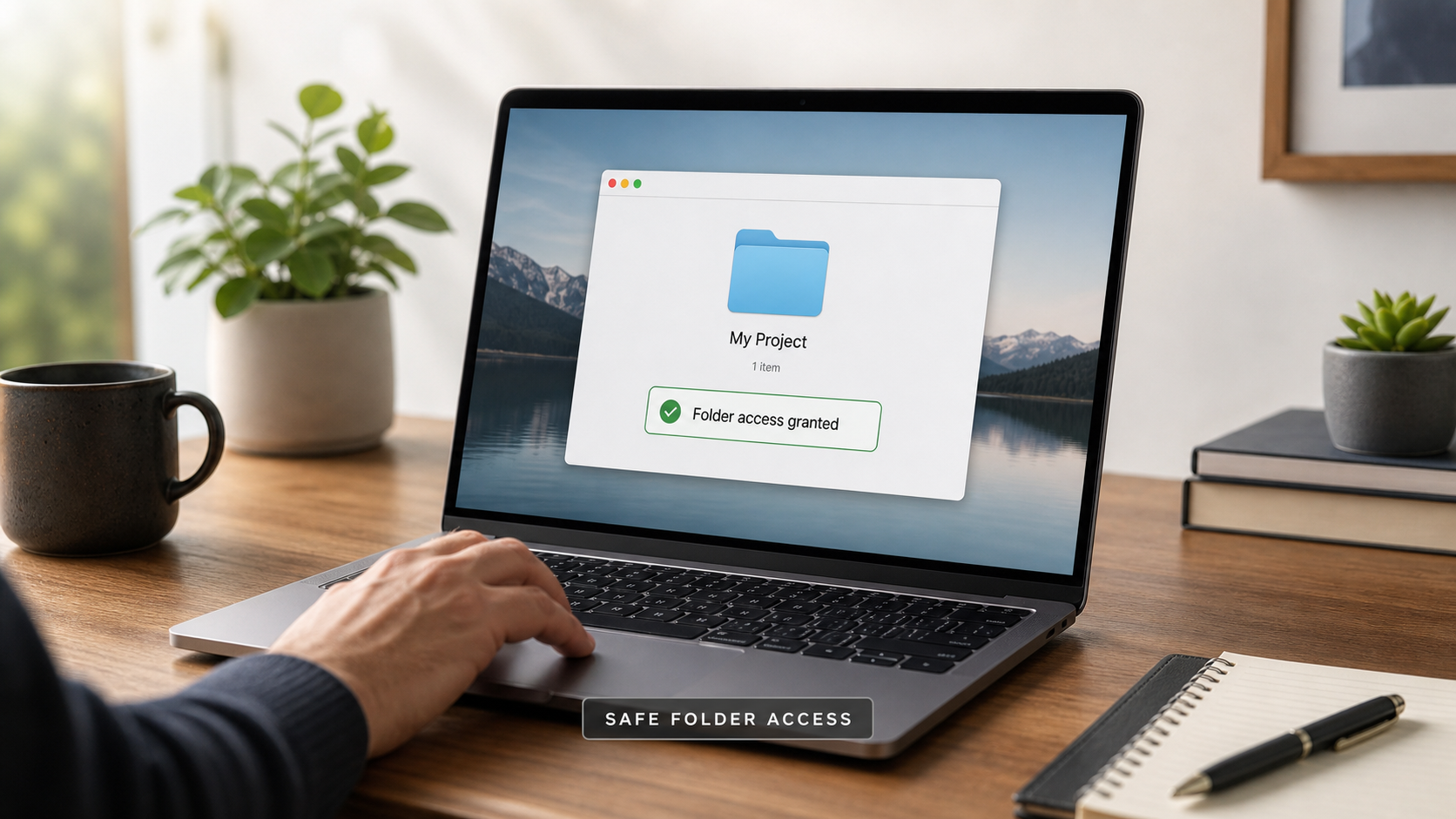
Teams using ChatGPT Work local files permissions can reduce accidental exposure by starting with a dedicated project folder, confirming who can approve desktop access, and separating local tasks from cloud work. This guide explains the official limits and a safer setup routine.
Quick answer: ChatGPT Work can use a local folder in the desktop app only when your plan and workspace allow it and you grant access. Work on the web or mobile runs in the cloud and cannot directly read a folder on your computer; start with only the files the task needs, and keep local chats on that computer unless you move or share them.
Tool Summary
ChatGPT Work is an agent experience for longer, multi-step work. The official guidance draws a hard surface boundary: Work on web and mobile runs in the cloud and cannot directly access files on your computer. In the desktop app, Work can use local files and desktop apps only when the plan and workspace allow it and you grant permission. Local chats stay on that computer unless you explicitly move or share files. For most teams, start with one low-risk folder before considering broader desktop tasks.
Best Fit Users
- Individual desktop users: need help with a contained project folder and want to approve access deliberately.
- Workspace admins: need to distinguish the Work role permission from Codex Local and from web/mobile browser or network controls.
- Security-conscious teams: need a repeatable least-privilege folder routine rather than broad computer access.
Setup / Working Method
- Create a task folder: copy only the files needed for this deliverable into a dedicated folder. Do not begin from a personal home directory or a shared drive root.
- Open Work on desktop: in the ChatGPT desktop app, choose ChatGPT, then Work. Open the local folder or project and approve the requested access for that task.
- State boundaries in the task: name the allowed folder, expected output folder, and files that must not be changed. Review outputs before moving or sharing them.
- Check the workspace role: admins manage Work under Workspace settings → Permissions & roles. Work access is one control across web, mobile, and desktop; Codex Local is separate.
Privacy check: the official documentation says local chats remain on the computer unless you explicitly move or share them. That does not justify a claim that Work performs background scanning; use only the folder and permissions you deliberately approve.
Comparison / Limits
- Desktop Work: may use local files and desktop apps with your permission, subject to plan and workspace access.
- Web and mobile Work: run in the cloud; they cannot directly access computer files. Add files and context to the chat instead.
- Cloud versus local chats: cloud Work chats sync across web, mobile, and desktop; local chats stay on that computer.
- Permission troubleshooting: if Work is usable on web/mobile but local access is absent on desktop, ask an owner or admin to confirm the role permission, then allow time for local-permission backfill before contacting Support.
Common Mistakes & Fixes
- Granting a broad folder first: create a task-only folder and move only approved inputs into it before authorizing access.
- Confusing a cloud session with desktop access: use web or mobile for cloud context, then open the desktop app only when local files are required.
- Skipping the role check: ask a workspace owner to verify the Work permission before treating a missing local option as an app fault.
Use Cases
- Client deliverable review: isolate a brief, approved source files, and a separate output folder before granting desktop access.
- Team rollout: document the role that may use Work, assign owners for approval, and test one non-sensitive project folder first.
- Access incident triage: verify surface, plan/workspace eligibility, role permission, and local-permission backfill—in that order—without assuming a background file scan.
FAQ
- Q: How do ChatGPT Work local files permissions work?
A: The official guidance says desktop access requires an eligible plan and workspace, plus your permission. Limit access to files the task needs. - Q: Can Work on web or mobile access my local folder?
A: No. Web and mobile Work run in the cloud and cannot directly access computer files. - Q: Why is local access missing although Work appears elsewhere?
A: Confirm the workspace role permission with an owner or admin, then allow time for local-permission backfill. - Q: Does enabling Work enable Codex Local?
A: No. The official documentation says Codex Local is controlled separately.
Follow @bigprompt, share your safe-folder routine in the comments, and explore AI Tools with Business & Productivity.
Related Big Prompt Hub pages
For the broader desktop-versus-cloud decision, read the local folder guide for choosing the right ChatGPT Work surface.
AI tools for choosing practical work and research workflows
Business productivity guides for safer team operating routines
Prompt engineering guides for clearer task boundaries and outputs
Coding and development resources for controlled local project work
Marketing and growth workflows that keep client inputs organized
Big Prompt Hub Review
The practical value is not “turn on everything.” Start with a narrow folder, explicit approval, and a known output location. The important limitation is surface-specific: local file access is a desktop permission path, while web and mobile Work remain cloud experiences. This guide is based on OpenAI’s current Help Center documentation and does not claim undocumented background scanning.